
How to Make Outbound Calls from Your Twilio Number
July 9, 2026 · Twilanswer Team
If your business already has a Twilio number for texting or inbound calls, placing outbound calls from that same number is the natural next step. Customers see the number they already recognize, and your team doesn't need a second phone system.
Twilanswer is a plug-and-play tool that sits on top of your existing Twilio account, no migration, no new number. Connect your Twilio credentials once, and Twilanswer makes it easy to place outbound calls, and optionally handle inbound calls too, on the numbers you already have.
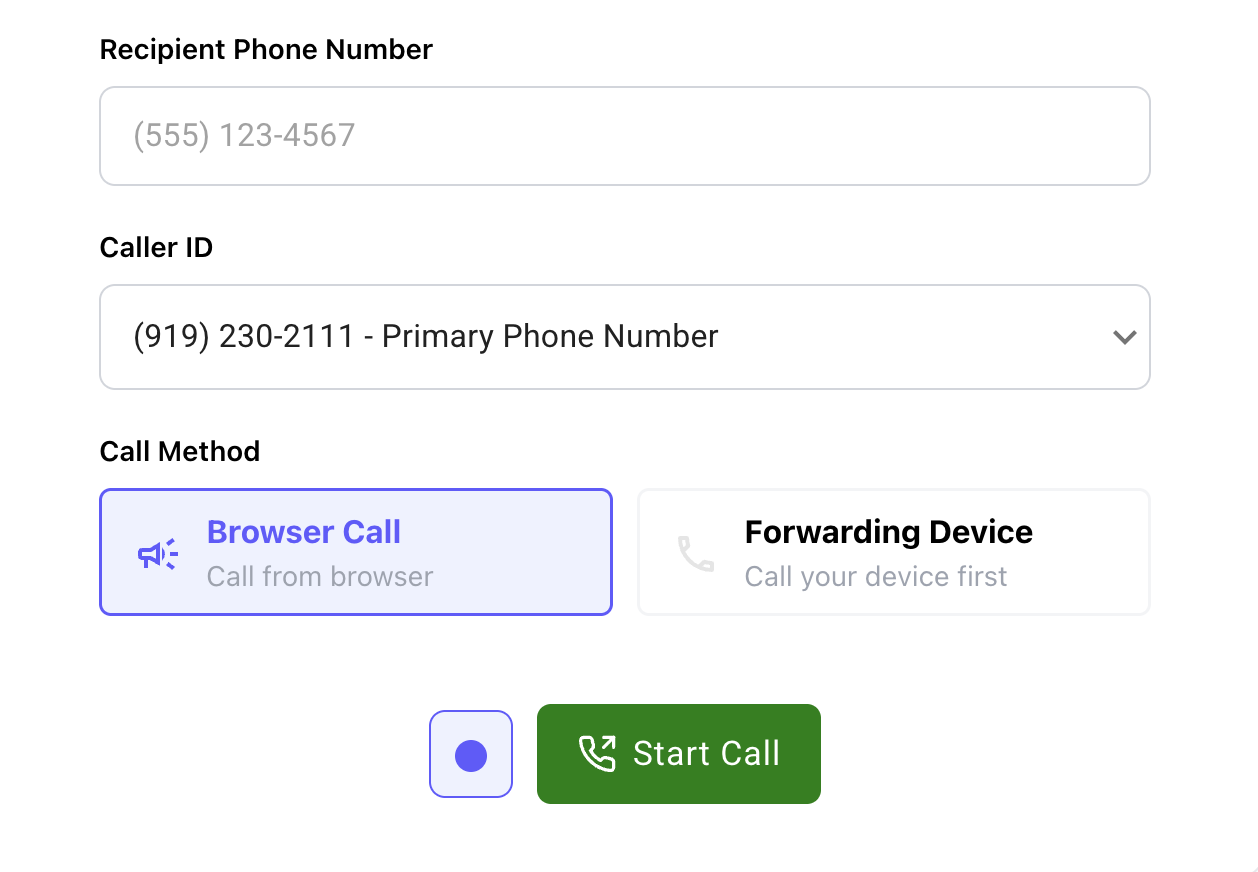
Short answer: in Twilanswer, outbound calling happens through the Dialer. You enter the recipient's number, pick which of your Twilio numbers shows up as caller ID, choose whether to talk through your browser or have Twilanswer ring your own phone first, then start the call, all on top of your existing Twilio account.
How Outbound Calling Works
Every outbound call has three parts worth knowing, whether you're placing one or setting one up for your team:
- Recipient — the person you're calling.
- Caller ID (From number) — the Twilio number the recipient sees on their end. Using your business number instead of a personal cell is usually the whole point of routing calls through Twilio in the first place.
- Call method — how you actually talk. Twilanswer supports two: Browser Call, where the conversation runs through your computer's mic and speakers, and Forwarding Device, where Twilanswer rings your own phone first and connects you to the recipient once you pick up.
Both call methods use the same recipient and caller ID, so switching between them is a matter of preference, not a separate setup.
Setting Up and Placing a Call
- Open Twilanswer and click Dialer in the sidebar.
- Enter the recipient's phone number in a valid format.
- Choose your Caller ID from the dropdown. This lists the Twilio numbers already synced to your account. If the number you want isn't there yet, you'll need to add it in Twilio first.
- Pick a Call Method: Browser Call to use your computer's mic and speakers, or Forwarding Device to have Twilanswer ring a phone you already have set up.
- Click Start Call. For a browser call, allow microphone access if your browser prompts you. For a forwarding device call, answer when Twilanswer rings you, and it connects you to the recipient automatically.
If you don't have a Twilio number yet, start with how to purchase a Twilio phone number. If you plan to use the Forwarding Device method, make sure the phone you want Twilanswer to ring is added first; see how to add a forwarding number in Twilanswer. The full walkthrough of both methods, including field-by-field detail, is in how to dial outbound numbers using Twilanswer.
Choosing Between Browser Call and Forwarding Device
Neither method is objectively better, they fit different situations:
- Browser Call is the better default when you're at your desk and want to stay inside Twilanswer for the whole call, no second device to manage. It's also the faster option since there's nothing to answer first.
- Forwarding Device is worth it when you want a real handset in your hand, whether that's because you're stepping away from your computer or you just prefer talking on a phone. The tradeoff is that if you don't answer the forwarding call, the recipient never gets dialed, so check voicemail or other routing on that line if calls seem to be going unanswered.
Teams that split time between the office and being out on calls often end up using both, Browser Call at a desk, Forwarding Device from a cell phone.
Recording and Following Up
If you need a record of outbound calls, for training, quality, or compliance reasons, recording and transcription work the same way on outbound calls as they do on inbound ones. It's a setting on the route rather than a separate tool. See how to record and transcribe outbound calls in Twilanswer for setup. Keep in mind that call recording disclosure requirements vary by location, so check what applies to you before turning it on; this isn't legal advice.
Example: Returning a Customer Call
A customer leaves a voicemail asking about an order. Instead of calling back from a personal cell, the business owner opens the Twilanswer Dialer, enters the customer's number as the recipient, leaves the Caller ID set to the business's main Twilio number, and clicks Browser Call from a laptop with a headset on. The customer sees the business's real number on their caller ID, the call gets recorded automatically for training, and no second phone or app was needed.
FAQ
Can I make outbound calls from a Twilio number without a physical phone? Yes. Twilanswer's Browser Call option runs the entire conversation through your computer's mic and speakers, so no second phone is required. You can still use the Forwarding Device option instead if you'd rather answer on a handset.
What phone number will the person I'm calling see? Whichever number you select in the Caller ID dropdown in Twilanswer. It has to be one of the Twilio numbers already synced to your account, which is how you keep your business number visible to the recipient instead of a personal cell.
What happens if I use Forwarding Device and don't answer my phone? The call to the recipient never connects, since Twilanswer needs you to pick up the first leg before it dials out. If calls seem to be going unanswered, check voicemail or other forwarding rules on that line.
Can outbound calls be recorded and transcribed the same way inbound calls are? Yes. Recording and transcription are a setting on the outbound route in Twilanswer rather than a separate integration. See how to record and transcribe outbound calls in Twilanswer.
Do I need a Twilio number specifically for outbound calling, or can I use my existing one? Your existing Twilio number works. Twilanswer connects to your current Twilio account, so any number already there is available to select as caller ID in the Dialer.
Final Thoughts
Placing outbound calls from your Twilio number comes down to three choices: who you're calling, which number they see, and how you want to talk. Twilanswer's Dialer puts all three in one place, whether you're calling from your browser or your own phone. Try Twilanswer free for 14 days to get outbound calling running on your existing Twilio number.