
Channels and Integrations • 4 min read
How to Integrate ElevenLabs with Twilanswer
Create agents in ElevenLabs first, then connect with an API key, fetch agents, and optionally enable Twilanswer tools. Required before routing calls to an ElevenLabs agent.
The Eleven Labs AI Agent channel (labeled Beta in the product) lets Twilanswer receive and place calls with your ElevenLabs voice agents. You add it like other channels, then connect it using an API key from ElevenLabs.
After the channel is saved, you can use ElevenLabs as a call action on a route.
Before you start in Twilanswer
We recommend creating at least one agent in ElevenLabs (in the ElevenLabs dashboard) before you add the Twilanswer integration. Later, when you click Fetch Agents in Twilanswer, the list is built from agents that already exist in your ElevenLabs workspace—so having agents ready avoids an empty list and makes setup smoother.
Steps to add the ElevenLabs channel
1. Open Channels and add a channel
- Open the Twilanswer dashboard.
- Select Channels in the sidebar.
- Click Add Channel in the top-right corner.
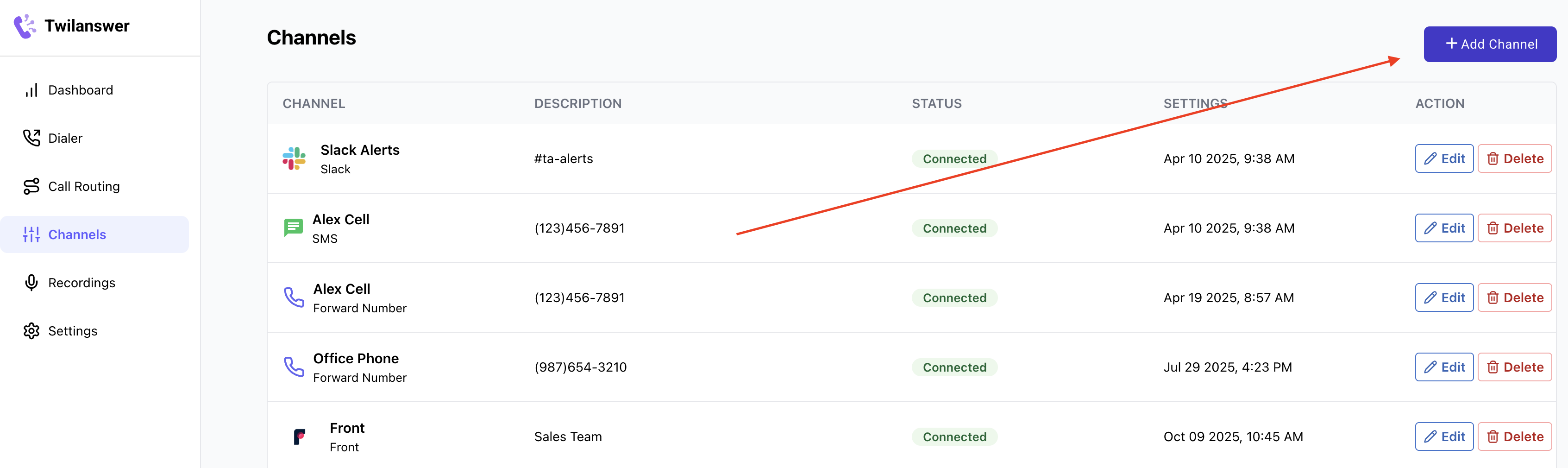
2. Choose Eleven Labs AI Agent
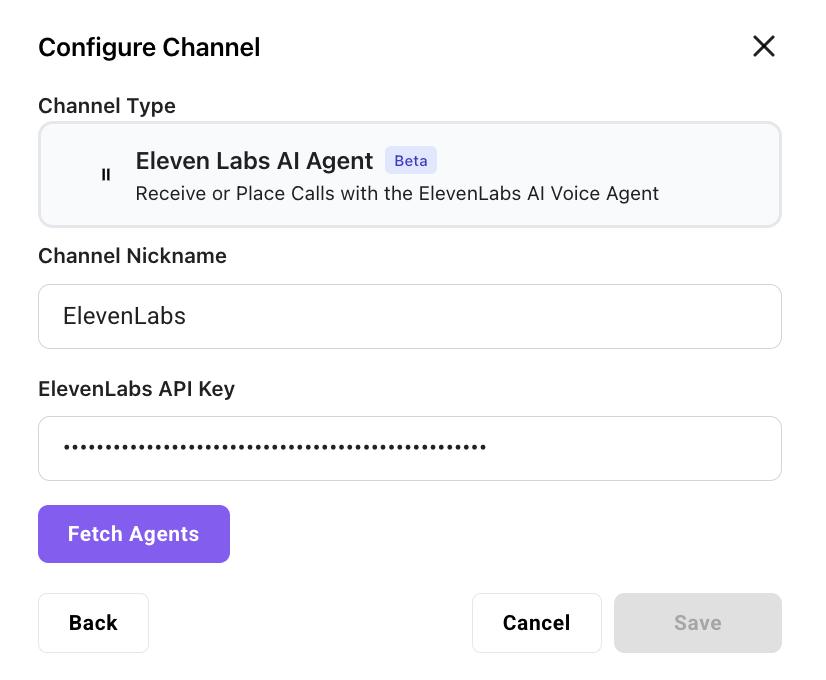
- In the Configure Channel dialog, under Channel Type, select Eleven Labs AI Agent (shown with a Beta badge).
- Enter a channel nickname (for example ElevenLabs).
You will need an ElevenLabs API key in the next steps. If you already have one with the right permissions, you can paste it and skip ahead to Paste the key, fetch agents, and save below.
3. Open ElevenLabs API keys
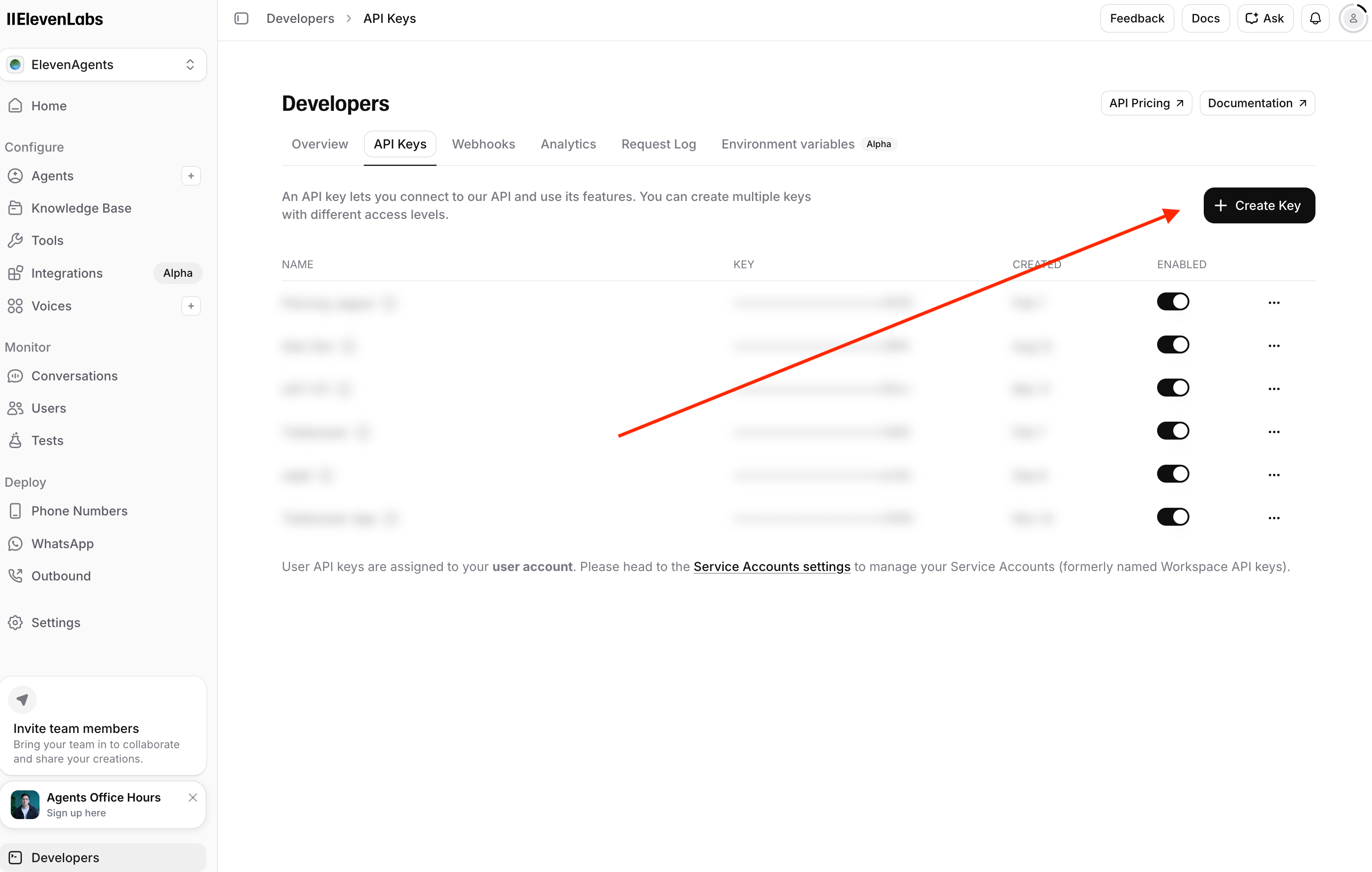
Open ElevenLabs in a new browser tab and go to your Developer settings API Keys page. You can use this direct link:
elevenlabs.io/app/developers/api-keys
Click Create Key (or + Create Key) to start creating a new API key.
4. Set API key name and permissions
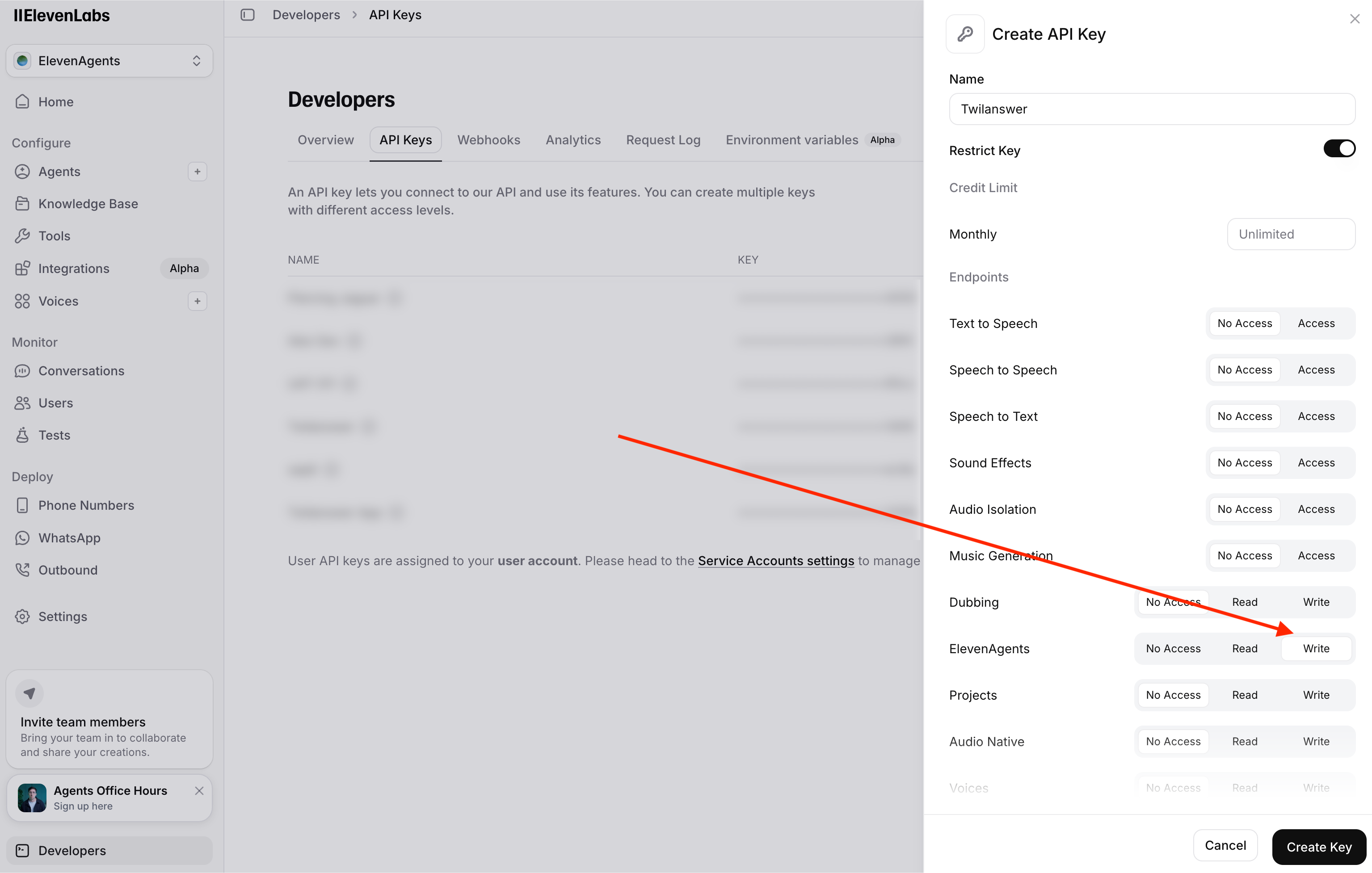
In the Create API Key flow:
- For the key name, we recommend Twilanswer so you can recognize that this key is only for Twilanswer.
- Under Endpoints & permissions, find ElevenLabs Agents (it may appear as ElevenAgents in the dashboard). Set that service to Write access. Other services can stay at No Access unless your organization requires more.
Without Write access on Agents, Twilanswer cannot list and use your agents correctly.
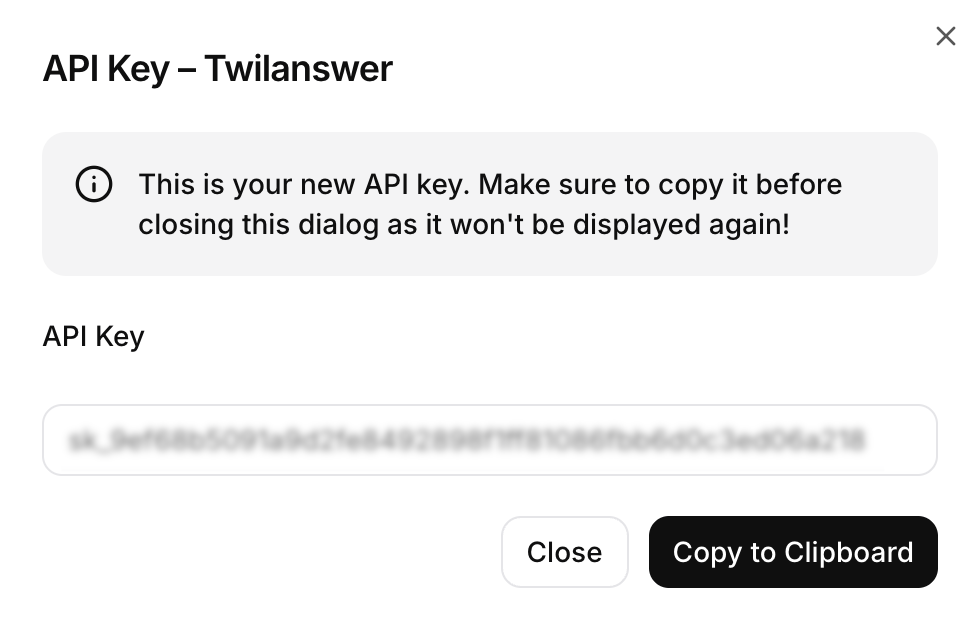
5. Copy the new API key
ElevenLabs shows the new key once. Copy it (for example with Copy to Clipboard) before you close the dialog—you usually cannot see the full key again later.
6. Paste the key, fetch agents, and save
Return to the Twilanswer tab:
- Paste the API key into ElevenLabs API Key.
- Click Fetch Agents.
If Fetch Agents fails, double-check the key, that Agents has Write permission, and that the key is still enabled in ElevenLabs. Invalid or revoked keys are the most common cause of errors.
When it succeeds, you should see agents from your ElevenLabs account listed under Select agents to make available. Check the agents you want Twilanswer to use.
Add Twilanswer tools: You can turn this on or off. We recommend on. When enabled, Twilanswer creates the following tools in your ElevenLabs workspace so your agents can invoke them during a call:
- DTMF — Use touch-tone (keypad) signaling on the call (for example to collect digits from the caller or send tones as part of your flow).
- Hang up — End the call from the agent when the conversation should disconnect.
After those tools exist, you must still enable them per agent in ElevenLabs. Open each agent in the ElevenLabs dashboard, go to that agent’s Tools settings (sometimes labeled Agent tools or similar), and turn on the Twilanswer tools you want that agent to use. If a tool is not enabled there for that agent, the agent cannot use it on a call—even if Add Twilanswer tools is on in Twilanswer.
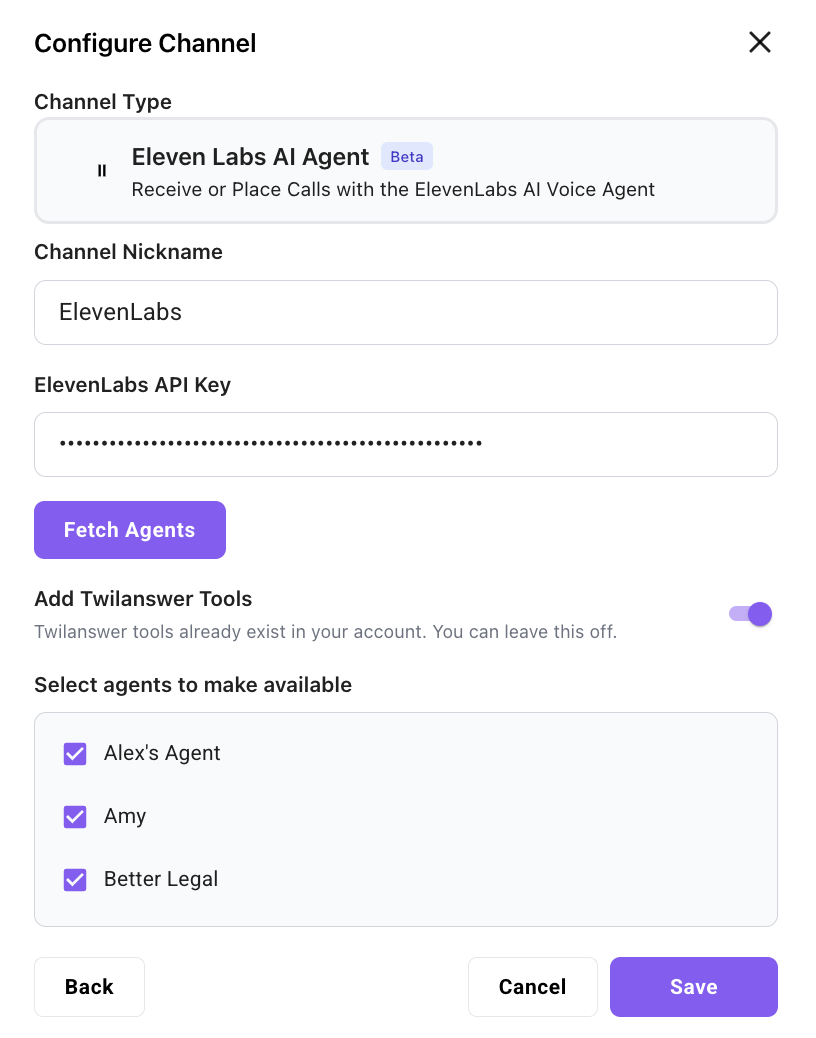
Click Save to finish. Confirm the channel appears on the Channels list with the status you expect.
Point a call route to your ElevenLabs agent
Once this channel is set up, you can configure your call routes to send inbound calls to an ElevenLabs agent when you want. See How to Route Calls to an ElevenLabs AI Agent in Twilanswer for the call-action steps, and How to Configure Call Routes for the full route editor (hours, actions, notifications).
Beta and pricing
ElevenLabs AI agent features may be labeled Beta in Twilanswer. For how billing and availability may change after beta, see How to Route Calls to an ElevenLabs AI Agent in Twilanswer.