Account Settings • 1 min read
How to Manage Your Billing in Twilanswer
Billing manages your Twilanswer plan and usage. Learn how to view your plan and update charges in the Stripe portal (owners/admins).
Navigating to the Billing Page
- Log in to Twilanswer.
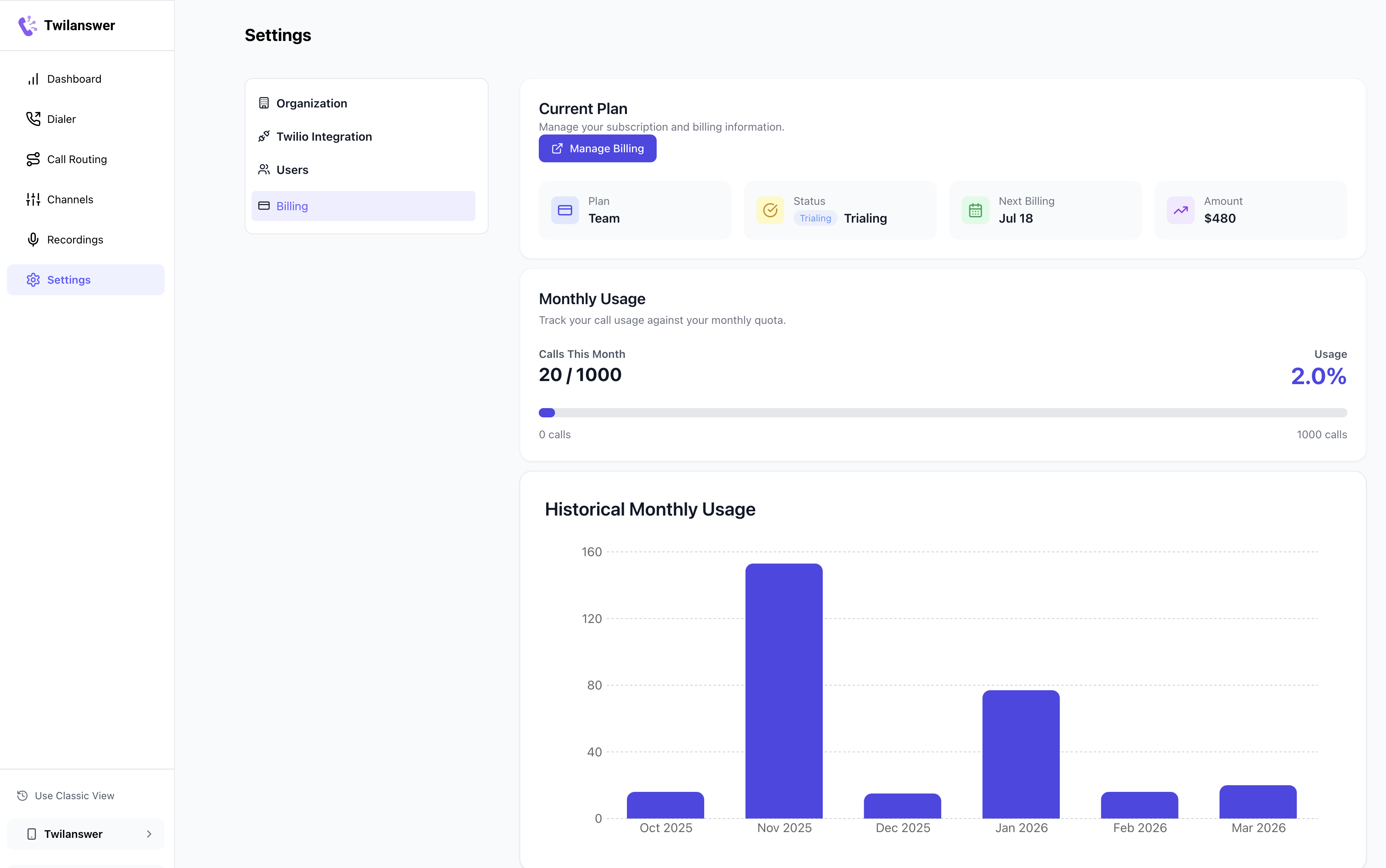
- Go to Settings > Billing.
Viewing Your Current Plan
At the top of the Billing page, you will see your current plan name and status, which will be one of the following:
- Active – Your subscription is active and in good standing.
- Trialing – You are on a free trial.
- Cancelled – Your subscription has been cancelled, and access may be limited.
Below this, you will see a preview of your usage against your call quota. (See our Pricing Page for more details.)
Updating Your Subscription
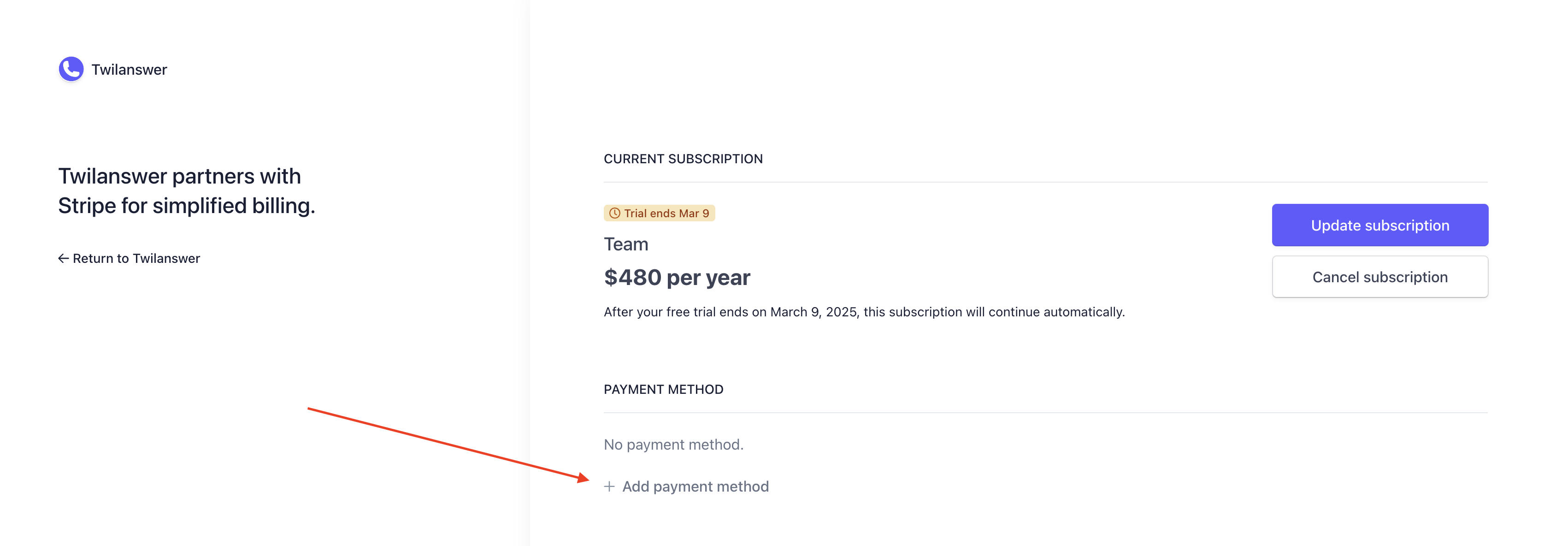
- Click the “Manage Billing” button to open the Stripe Billing Console.
- If Stripe prompts you for an email address, make sure to enter the one listed on the Billing page in Twilanswer.
Subscribing After a Free Trial
If you are signing up after your free trial, you will need to add a payment method in Stripe.
If you wish to continue on the Team Plan, no further action is needed—you will be charged when your trial ends.
If you prefer the Solo plan, you can select it within the Stripe Billing Console.
If you would like to set up a Custom plan, please reach out to hello@twilanswer.com.