
Call Routing • 2 min read
How to Point Your Twilio Number to Your Twilanswer Route
If Autoconfiguration is off, you'll need to manually point your Twilio number at your Twilanswer route. This article walks through the steps to do that.
Prerequisites
Before proceeding, ensure you have already created a Call Route for this specific phone number in Twilanswer. If you haven’t done so, follow the steps in How to Create a Twilio Call Route in Twilanswer.
Once you save your call route, you will see a Route URL at the top of the page. This is the URL that Twilio needs to use to direct calls to Twilanswer. Copy that URL for the steps below.
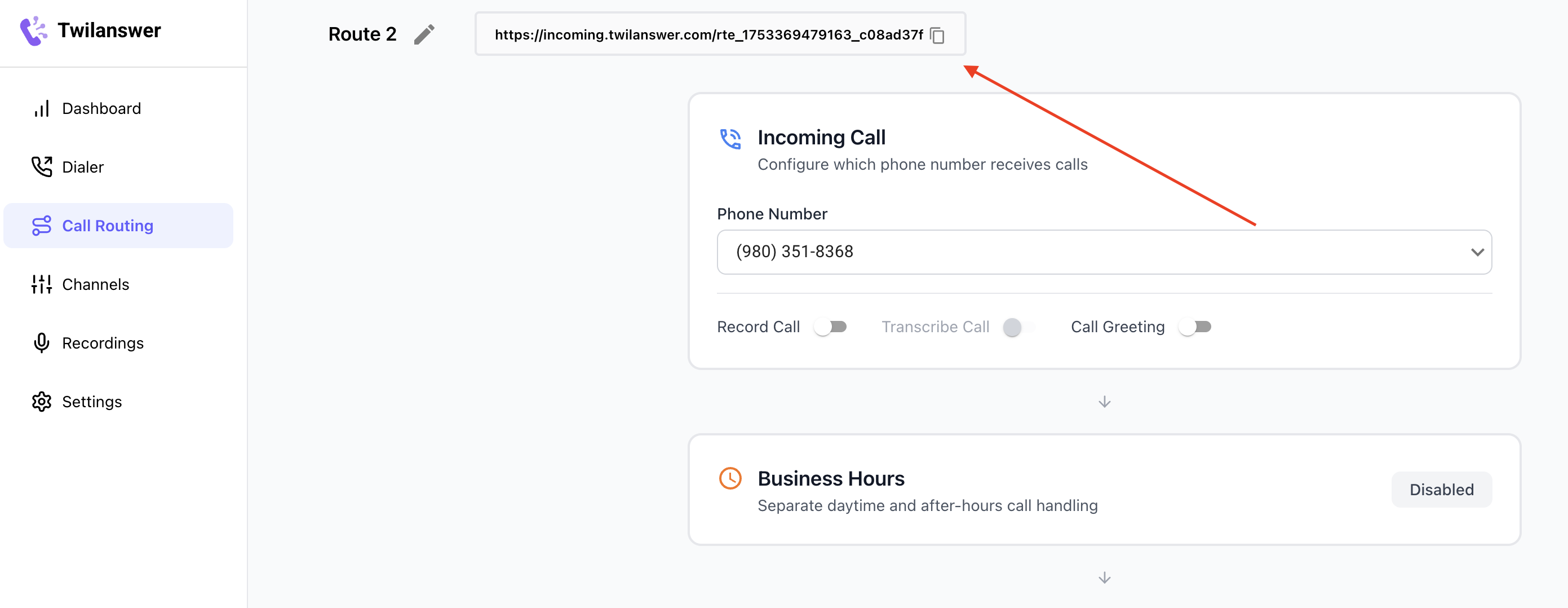
Steps to Point Your Twilio Number to Your Twilanswer Route
- Log in to the Twilio Console and Navigate to the Phone Number
- Go to Twilio Console
- Select the phone number you want to update.
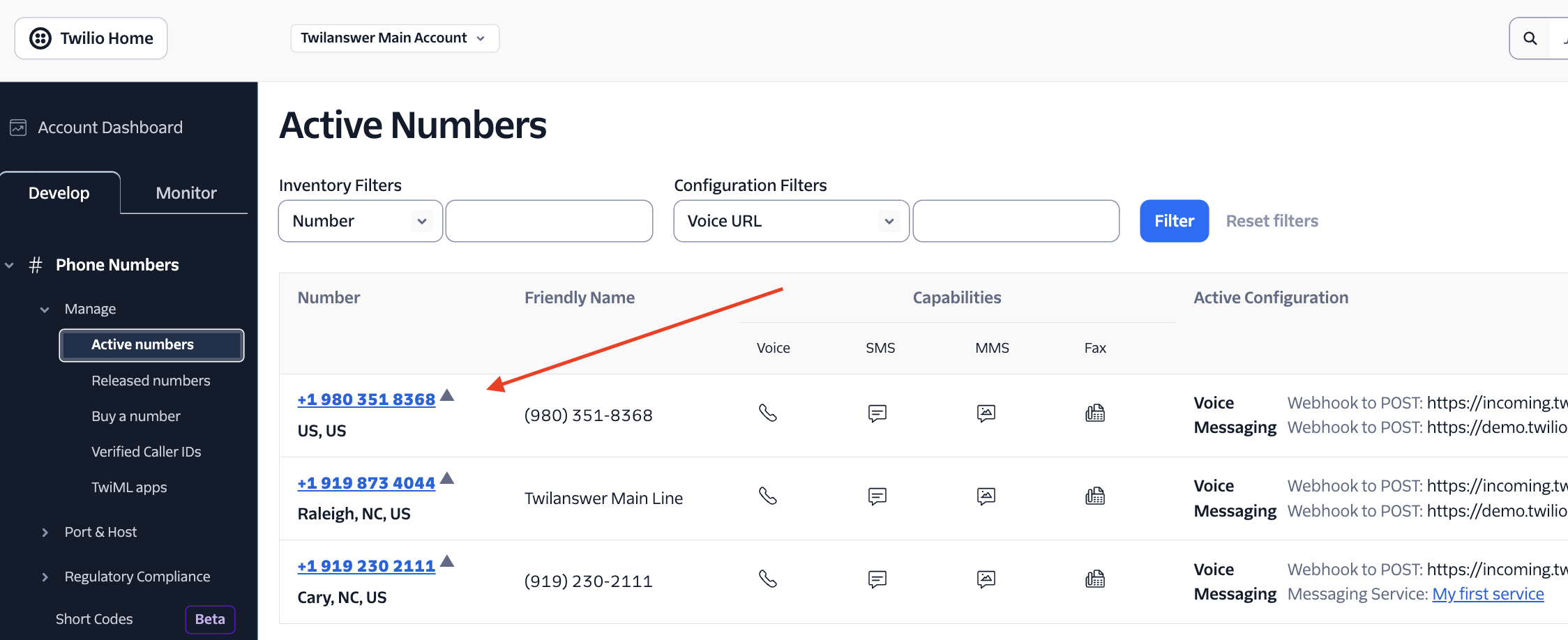
- Navigate to the Voice Configuration Section
- Under Configure With, select Webhook, TwiML Bin, Function, Studio Flow, or Proxy Service.
- Under the Voice Configuration section, find the A Call Comes In field.
- Configure the Webhook Settings
- Under A Call Comes In, select Webhook.
- Paste the Route URL from Twilanswer into the URL field.
- Under the HTTP dropdown, select HTTP POST.
- In the Webhook URL field, paste the Route URL from Twilanswer.
- Set the request method to HTTP POST.
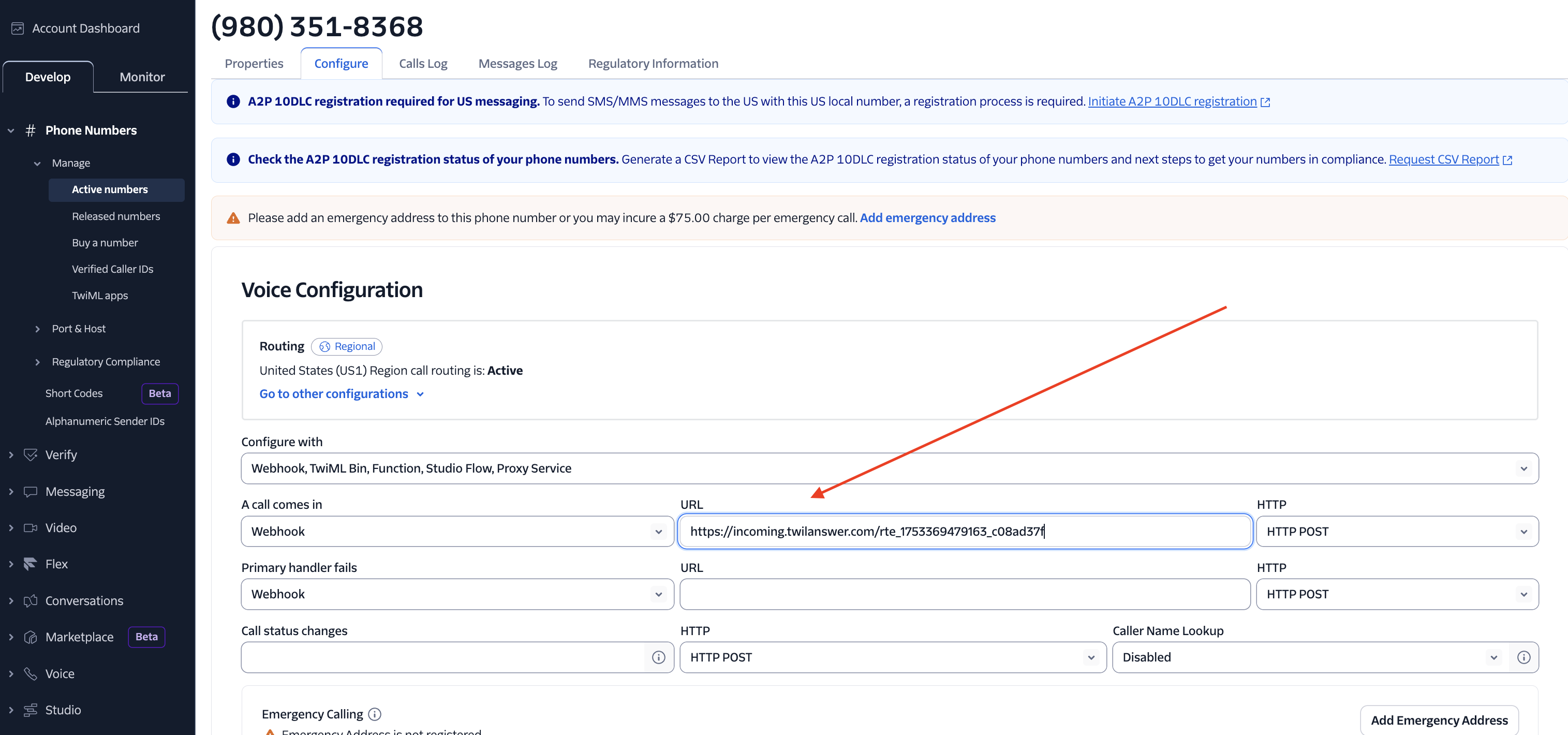
- Save Your Changes
- Scroll down and click Save to apply the changes.
Testing the Configuration
To confirm that your Twilio number is correctly pointing to your Twilanswer route:
- Call the Twilio number and verify that it follows the configured call route in Twilanswer.
- If the call does not connect correctly, ensure the Route URL was copied accurately.
Your Twilio number is now correctly pointed at your Twilanswer route, ensuring all incoming calls follow your configured call routing!