
Channels and Integrations • 1 min read
How to Set Up the Slack Integration in Twilanswer
Slack integration posts call notifications to your Slack workspace. Learn how to add the channel and enable it for call routes.
Steps to Set Up the Slack Integration
-
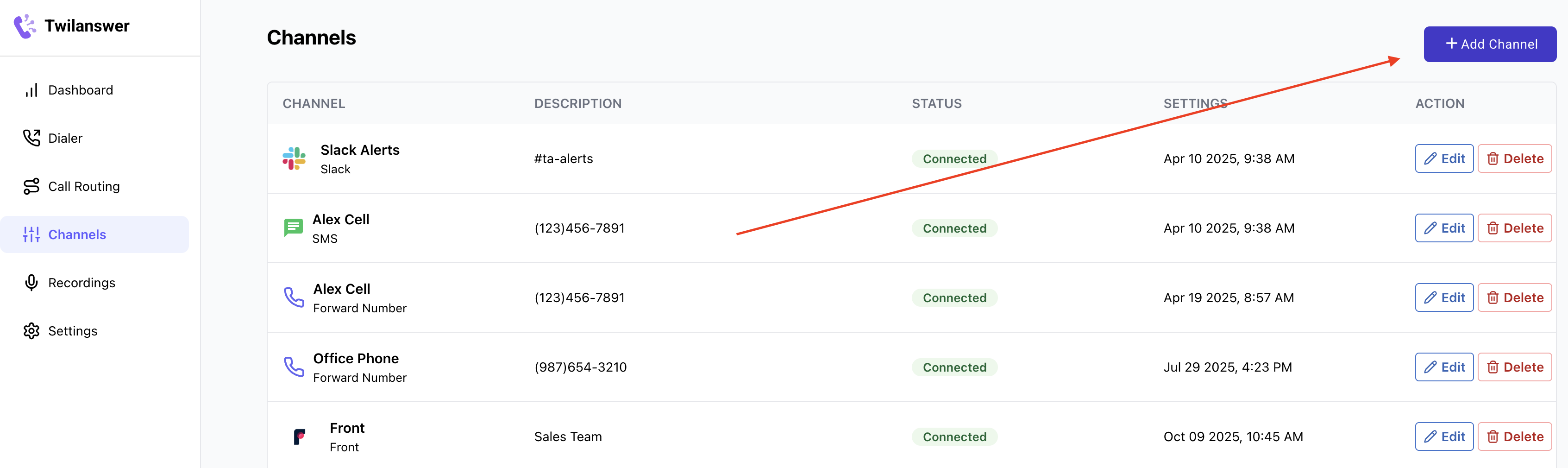
Navigate to the Channels Page in Twilanswer
- Go to the Twilanswer dashboard.
- Select “Channels” from the sidebar.
- Click “Add Channel” in the top-right corner.
-
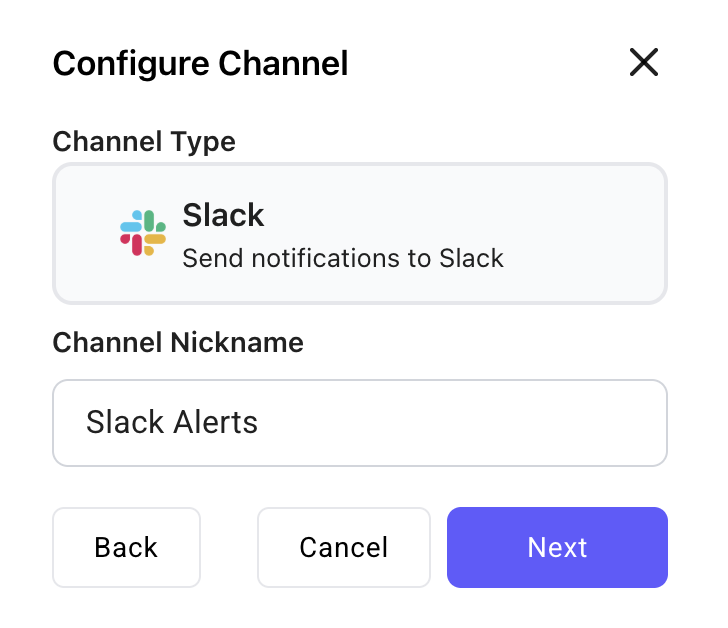
Enter Slack Integration Details
- Under Channel Type, select “Slack”.
- Enter a nickname to help you identify the Slack integration.
- Click Next to proceed.
-
Authorize Twilanswer in Slack
- Click the “Add to Slack” button.
- You will be redirected to Slack (sign in if prompted).

-
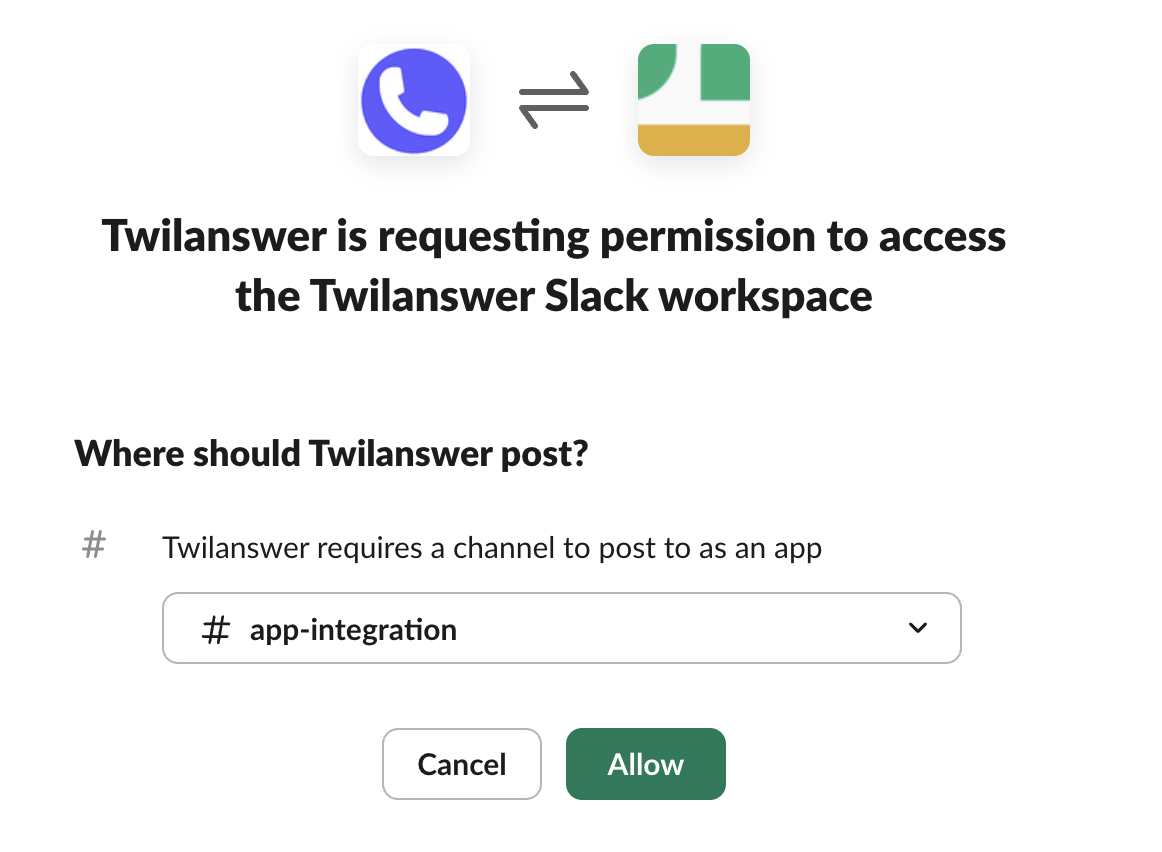
Select the Slack Channel
- Slack will ask you to choose the Slack channel where you want to receive Twilanswer notifications.
- After selecting the channel, click Allow to confirm.
-
Verify the Integration in Twilanswer
- Once redirected back to Twilanswer, your Slack integration should show as Active.

-
Confirm the Integration in Slack
- You should receive a success message in the selected Slack channel from the Twilanswer integration.

Using Your Slack Channel in Call Routes
Now that your Slack integration is active, you can configure your Call Routes to send notifications for new calls directly to Slack. Refer to How to Configure Twilio Call Routes in Twilanswer for more information.